Photo to Pixel Art
This converter turns your photo into an actual pixel grid. Every block is the average color of the patch it covers — no AI repainting, no style transfer, no server round-trip. The whole thing runs in this tab.
We built it for people who need pixel art as a work material: game jam sprites, cross-stitch and perler bead charts, Minecraft builds, and 8-bit versions of photos worth keeping.
Grid
Palette
Adjustments
Drop an image, paste it, or click to browse
PNG · JPG · WebP · GIF · AVIF · BMP
Your image is processed entirely in this browser. Nothing is ever uploaded.
or try a sample
Ready when you are
Photo to Pixel Art Examples
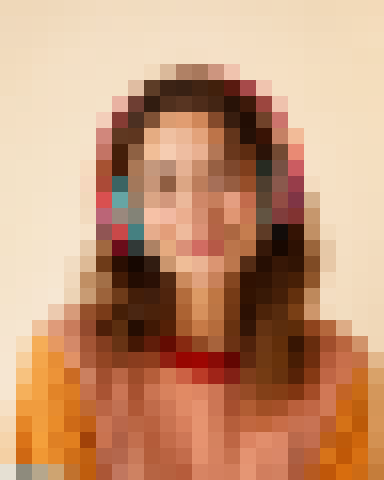
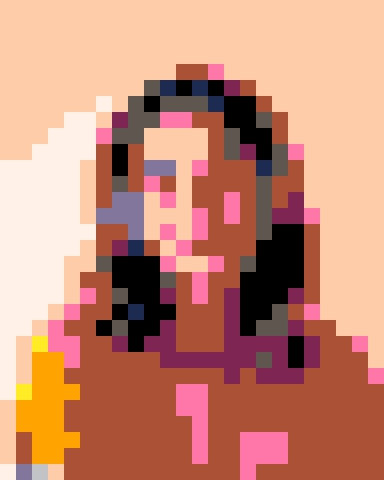
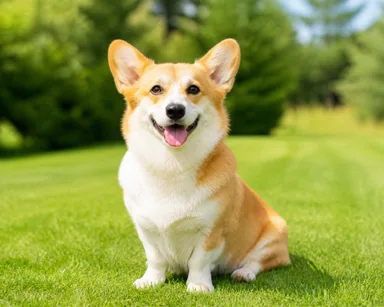
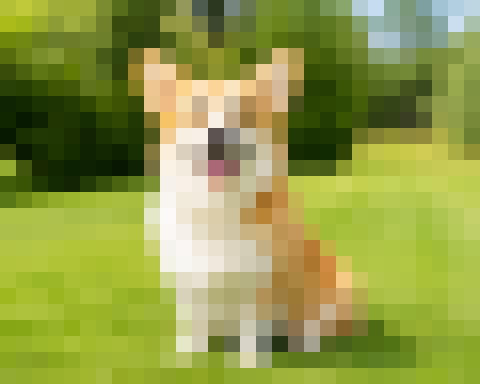
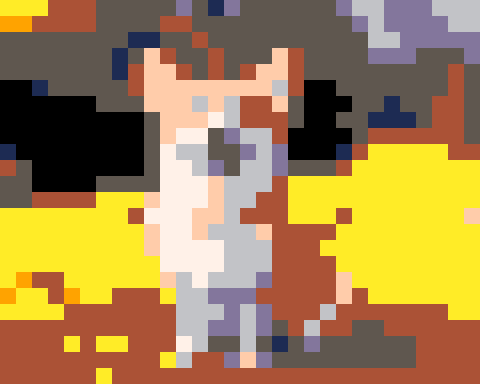
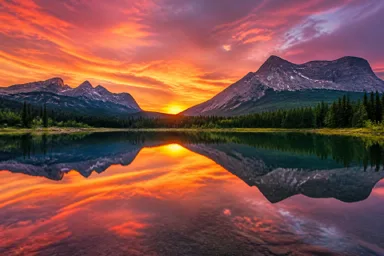
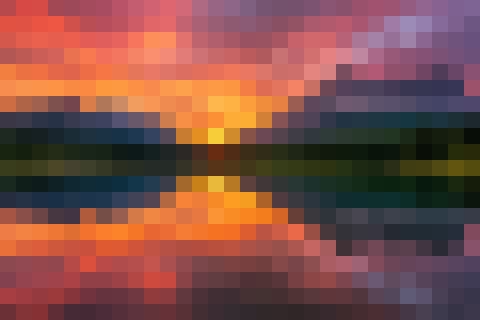
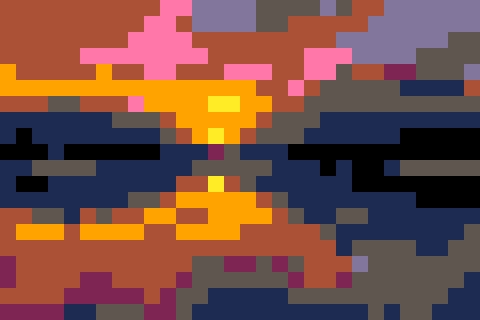
Every example below is the actual output of the converter above — original photo on the left, pixelated result on the right.

How It Works
1. Drop a photo into the box, paste one from your clipboard, or click one of the sample thumbnails.
2. Pick how chunky you want it. 16px blocks read as classic pixel art, 8px is sprite territory, 32–64px leans mosaic. Then flip through the palettes until one feels right.
3. Download the PNG. Transparent areas stay transparent, and the file is yours with no watermark.
Converter Features
Block sizes from 8 to 64 pixels plus a custom slider, or switch to target-grid mode and set the output to exactly N cells on the long edge — 32 cells means 32 cells. A square center-crop option gives you true 32 × 32 output.
Four palette modes: keep the original colors, go black & white, snap to a console palette (PICO-8, Game Boy, CGA, Ice Cream GB, One Bit), or cut the image down to your own color count.
A live palette panel shows every color in the result with its hex code — click a swatch to copy it, import your own palette from Aseprite (.hex) or GIMP (.gpl), and export a printable color legend for pattern work. Grid lines turn the export into a ready-made pattern chart.
Contrast and saturation sliders for flat photos. Transparent PNGs come out transparent, and the Pro Export Pack adds SVG, 4x high-res PNG and batch ZIP — one-time, no subscription.
Photo, Picture & Image to Pixel Art
People search for this tool three different ways. The same engine also lives on the picture and image pages, and there is a converter page for the workflow crowd.
Photo, Picture & Image to Pixel Art
The same converter, reached the way you searched for it:
New here? Read the step-by-step guide: How to Turn a Photo into Pixel Art
Frequently Asked Questions
Is this photo to pixel art converter free?
The 1x PNG download is free with every setting. The Pro Export Pack — SVG, 4x high-res PNG and batch ZIP — costs $4.99 once and helps keep the lights on.
Does my photo get uploaded to a server?
No. The conversion happens in your browser with the Canvas API. You can load the page, disconnect from the internet, and it still works — the photo never left your device.
What pixel size should I use?
16px for the classic look, 8px if you are making sprites, 32–64px for a soft mosaic. For pattern charts, match the block count to your fabric or pegboard grid instead of eyeballing it.
Can I export a transparent PNG?
Yes. Transparency survives the whole pipeline — the checkerboard preview shows it, and the exported PNG keeps it.
How do I get the retro console look?
Palette → Retro → PICO-8 or Game Boy, block size 8–16px, and switch grid lines on. That combination is the look.